
Microsoft Entra Permission Setup
How to grant admin consent in Microsoft Entra for the Dynamics 365 integration.
For Dynamics 365 enterprise tenants, an organization administrator may need to grant consent for the Revial application in Microsoft Entra (formerly Azure AD) before individual users can connect.
When Is This Required?
If a user sees a "Need admin approval" message during the Dynamics 365 connection flow, the request will be submitted to Admin Consent Requests in Microsoft Entra. A tenant administrator must then review and approve the request before the user can proceed.
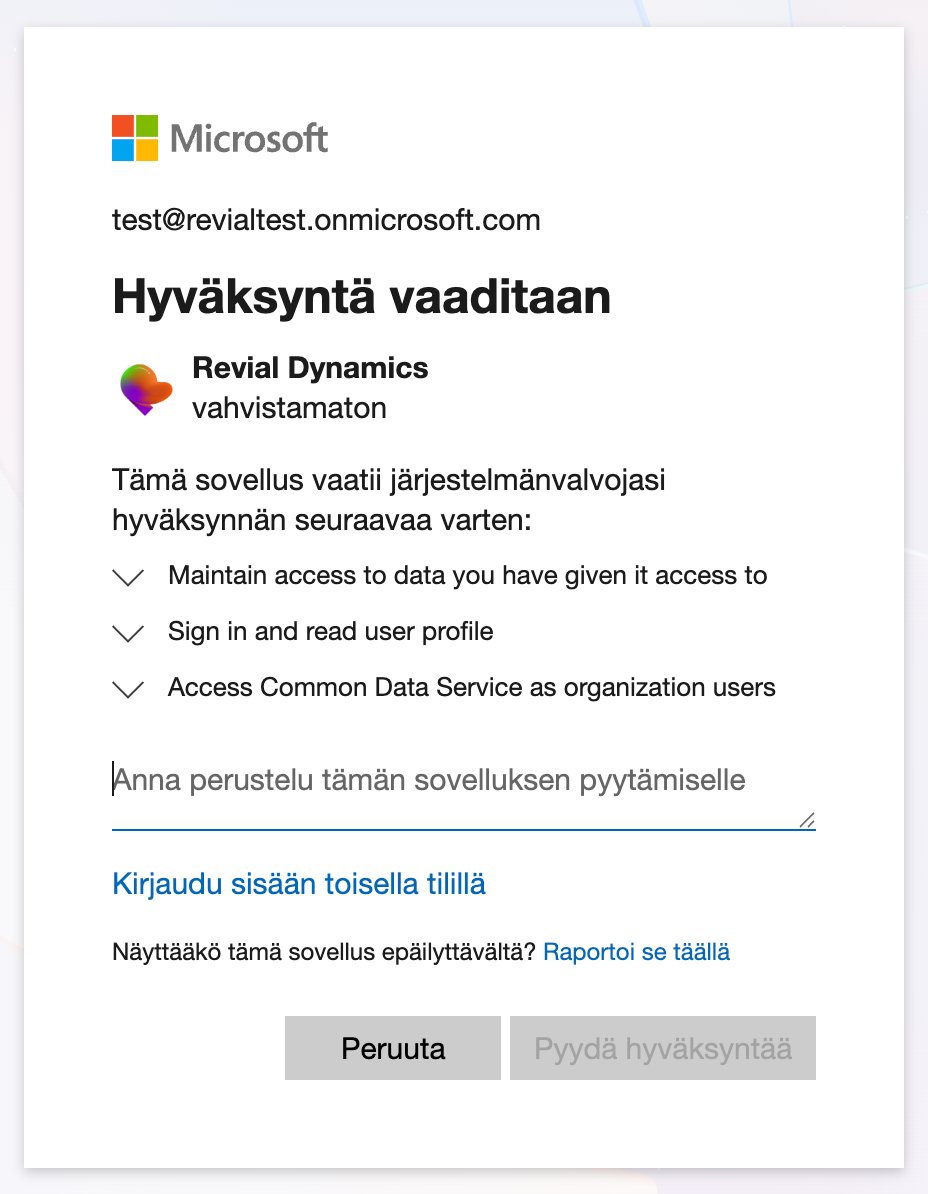
Granting Admin Consent
- Sign in to the Microsoft Entra admin center (entra.microsoft.com) with a Global Administrator or Application Administrator account
- Navigate to Admin Consent Requests under Enterprise applications to review pending user requests
- Locate the Revial application in the consent requests list (it will appear after a user's first connection attempt)
- Select the Revial application and go to Permissions
- Click "Grant admin consent" and confirm
Once consent is granted, users in the organization can connect their Dynamics 365 instance to Revial without needing individual admin approval.
Permissions Requested
Revial requests the following permissions to sync CRM data:
- user_impersonation — Allows Revial to access Dynamics 365 on behalf of the signed-in user
- User.Read — Allows Revial to read the signed-in user's profile information
- offline_access — Maintains the sync connection without requiring repeated sign-ins
Note: Granting admin consent applies to all users in the tenant. Review the requested permissions with your security team before approving.