
Article
Connecting HubSpot
Step-by-step guide to connecting your HubSpot CRM to Revial.
Step 1: Navigate to CRM Settings
- Open Revial and go to Organization Settings
- Select the CRM section

Step 2: Connect
- Click "Connect with HubSpot"
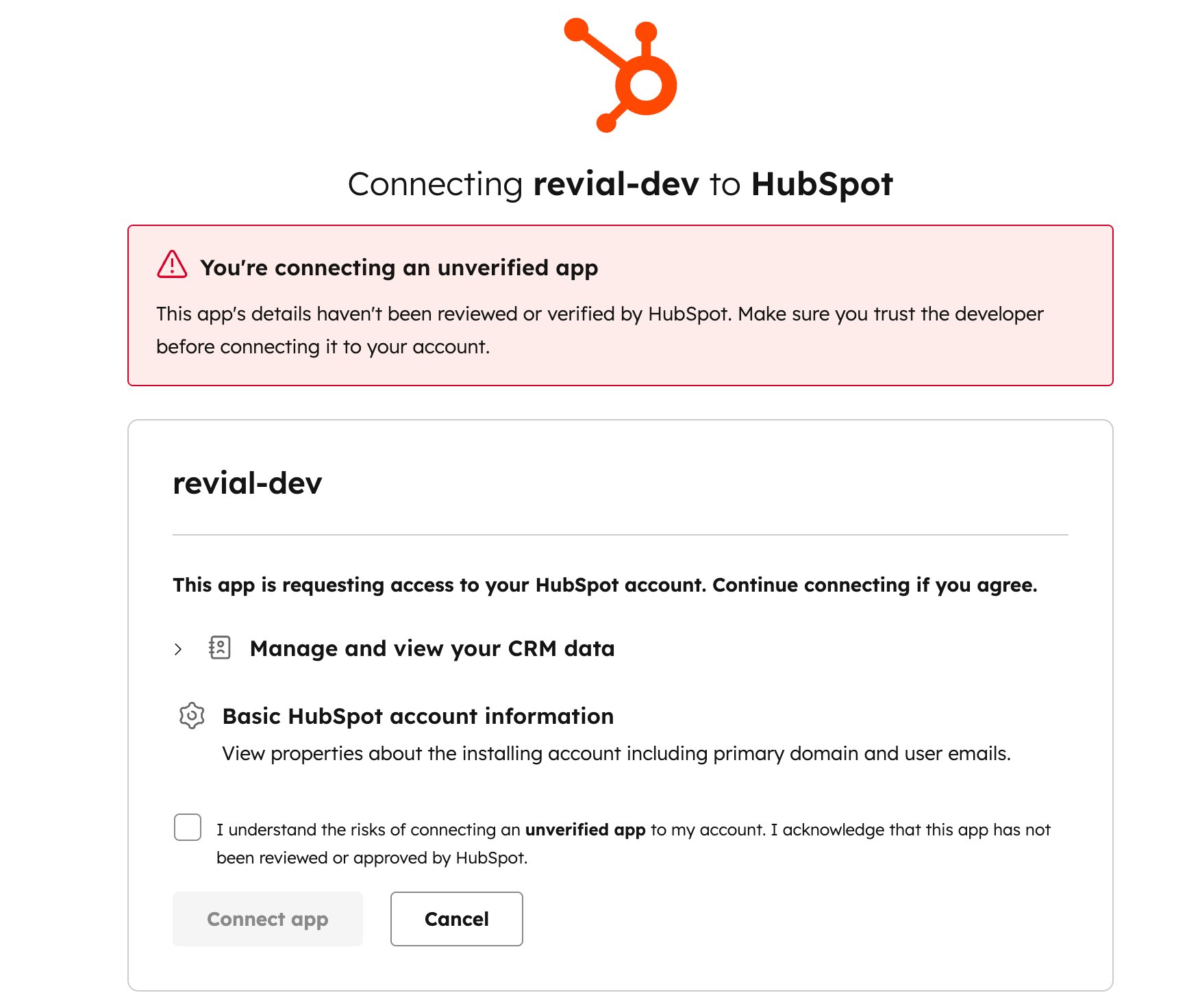
- You'll be redirected to HubSpot's authorization page
- Sign in to HubSpot if prompted
- Review the permissions Revial is requesting (contacts, companies, deals, etc.)
- Check the acknowledgement checkbox and click "Connect app" to authorize
Step 3: Verify Connection
After authorization, you'll be redirected back to Revial. You should see:
- Connection status showing Connected
- The HubSpot email used for the connection
- A Sync Now button to trigger data sync

Step 4: Initial Sync
Click the Sync Now button to pull your CRM data into Revial. The initial sync imports contacts, companies, and deals. This runs as a background job and may take a few minutes depending on the size of your CRM.